




- Joined
- 31.10.19
- Messages
- 1,623
- Reaction score
- 5,401
- Points
- 113
It's no secret that file metadata can be edited - for example, with Exif-Pilot. How do you spot a fake if the image metadata looks correct? Take some file with scrubbed metadata and analyze it for Photoshop or other editor manipulations. Upload it to https://29a.ch/photo-forensics and see what it tells you. The top menu item is Magnifier - useful for eyeballing the picture and poking around with your finger: maybe someone clumsily retouched something. But that’s not the only place to do this. We’re interested in another menu option: Clone Detection - the clone detector shows use of a stamp tool during editing, highlighting cloned areas in pink. As you can see, there’s plenty of that here.

Next item: Error Level Analysis (ELA) - it compares the original image with a recompressed version, which helps highlight altered regions in various ways. For example, they may appear darker or lighter than similar regions that were not manipulated. It’s useful as an auxiliary tool. It reveals areas of the image that have different compression levels. For JPEG images the whole photo should have about the same compression level. If any area has a significantly different error level, that indicates a digital modification. What to watch for: ELA highlights differences in JPEG compression; uniform-color areas like a solid blue sky or white wall will likely show lower ELA results than high-contrast edges.

Let's break it down element by element:

Principal Component Analysis: In essence, the principal component method (PCA) offers another view of the data, allowing outliers to be spotted more easily. For example, colors that don't quite match the image will often be more noticeable when examining the principal components of the image. Compression artifacts are also usually much more noticeable, especially in the second and third principal components. For us, lazy OSINTers, the details are unnecessary. What matters is that all these tools together allow detecting a fake and manipulations in editors.
Thus, we can unambiguously say that this picture is a fake. In practice all this checking takes no more than a couple of minutes. Of course, if you dig into the details and start poking at every pixel with your finger, even weeks won't be enough... Try working with your own variants. This will give experience and an understanding of how this resource works. Broadly speaking, the algorithms it uses give no chance to hide a fake. Every pixel carries information. But that's for geeks, not for lazy OSINTers.
Next item: Error Level Analysis (ELA) - it compares the original image with a recompressed version, which helps highlight altered regions in various ways. For example, they may appear darker or lighter than similar regions that were not manipulated. It’s useful as an auxiliary tool. It reveals areas of the image that have different compression levels. For JPEG images the whole photo should have about the same compression level. If any area has a significantly different error level, that indicates a digital modification. What to watch for: ELA highlights differences in JPEG compression; uniform-color areas like a solid blue sky or white wall will likely show lower ELA results than high-contrast edges.
Let's break it down element by element:
- Edges: Under ELA similar edges should have similar brightness. All high-contrast edges should look alike and all low-contrast edges should look alike. On the original photo low-contrast edges should be almost as bright as high-contrast ones.
- Textures: With ELA similar textures should show similar coloration. Highly detailed surfaces (e.g, a close-up of a basketball) will likely have higher ELA results than a smooth surface.
- Surfaces: Regardless of the surface’s actual color, all flat surfaces should have roughly the same coloration under linear coloring. Resaving a JPEG removes high-frequency components and reduces differences between high-contrast edges, textures and surfaces. A very low-quality JPEG will look very dark. Downscaling an image can increase edge contrast, making them brighter in ELA. Similarly, saving a JPEG with Adobe products automatically sharpens contrasty edges and textures, making them much brighter than low-texture surfaces.
- Noise Analysis: This tool is essentially an inverse denoising algorithm. A simple separable median filter is used to extract noise. It can help reveal manipulations such as airbrushing, warping, distortions and cloning with perspective correction. Best results come from high-quality images.
- Level Sweep: Allows quick scrolling through the image histogram. This boosts contrast at selected brightness levels. The goal is to make edges introduced by copy-paste more visible. To use this tool, hover over the image and scroll the mouse wheel. Watch for suspicious seams in the image.
- Luminance Gradient: The Luminance Gradient tool analyzes brightness changes along the image’s x and y axes. An obvious use is checking lighting consistency across parts of the image to find anomalies. Parts of the scene lit from the same angle and under similar lighting should have similar color; another use is edge checking. Similar edges should have similar gradients. If gradients on one edge are significantly sharper than others, that’s a sign the image might have been copied and pasted. It also detects noise and compression artifacts well.
Principal Component Analysis: In essence, the principal component method (PCA) offers another view of the data, allowing outliers to be spotted more easily. For example, colors that don't quite match the image will often be more noticeable when examining the principal components of the image. Compression artifacts are also usually much more noticeable, especially in the second and third principal components. For us, lazy OSINTers, the details are unnecessary. What matters is that all these tools together allow detecting a fake and manipulations in editors.
- Metadata - displays hidden EXIF metadata in the image, if present.
- Geotag - shows the GPS location where the photo was taken, if it's saved in the image.
- Thumbnail analysis - displays a hidden preview image inside the source image, if present. Very convenient for revealing a fake if one image was inserted on top of another.
- JPEG Analysis - gives us a table of structural values and quantization matrices. To avoid overcomplicating things, it's enough to look at the table of structural values. This table shows that:
✔ This is a progressive JPEG
✔ There are IPTC metadata, meaning the file was edited in a third‑party editor
✔ The file was resaved by an editor
✔ Lots of SOS/DHT → saved with optimization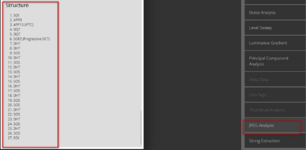
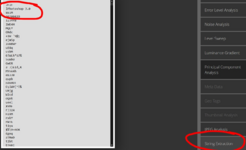
- String Extraction - the image for binary content by looking for ASCII character sequences. This is an excellent fallback option for viewing image metadata in a format that Forensically doesn't yet understand. The program will output alphanumeric sequences longer than 4, or sequences of 8 or more ASCII characters that are not control characters. This allows detecting metadata hidden or not recognized by forensic tools. Relevant data is usually stored at the beginning or end of the file. An interesting string to pay attention to is bFBMD followed by a sequence of digits and letters af (hexadecimal encoding). This string is added to (some) Facebook images. It's modeled after the classic Unix command strings. In the very first lines we see Photoshop 3.0 - this is the type of header that indicates this jpeg file was processed in Photoshop.
Thus, we can unambiguously say that this picture is a fake. In practice all this checking takes no more than a couple of minutes. Of course, if you dig into the details and start poking at every pixel with your finger, even weeks won't be enough... Try working with your own variants. This will give experience and an understanding of how this resource works. Broadly speaking, the algorithms it uses give no chance to hide a fake. Every pixel carries information. But that's for geeks, not for lazy OSINTers.

